
Accessing Shared Mailboxes
Outlook on the Web
Adding a Shared Mailbox to Your Sidebar
This method displays the shared mailbox alongside your own folders, so you can monitor it without switching windows.
- Open Outlook on the Web and sign in if prompted.
- In the left-hand panel, hover your mouse over the Folders heading. A set of three dots (…) will appear to the right.
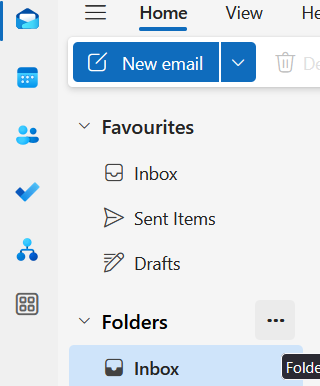
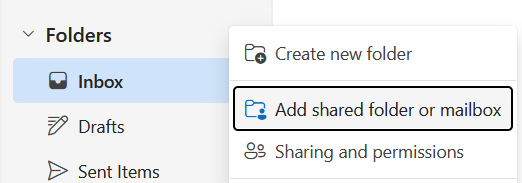
- Click the three dots, then select Add a Shared Folder or Mailbox.
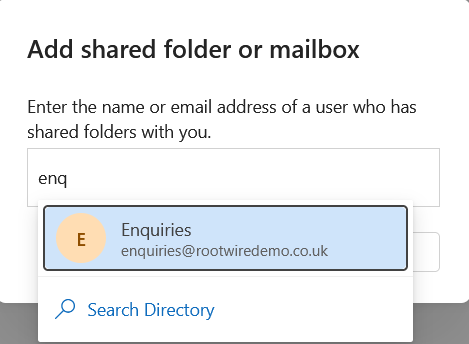
- Type the email address of the shared mailbox and select it from the results that appear.
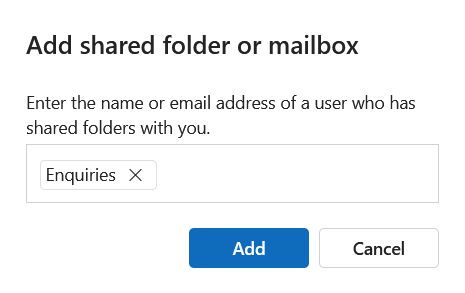
- Click Add.
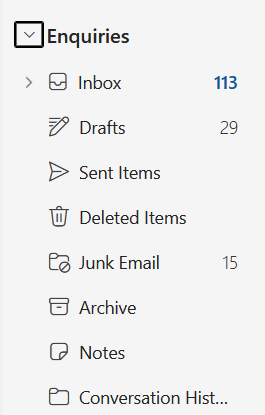
- The shared mailbox will now appear as a separate section in your left-hand panel.
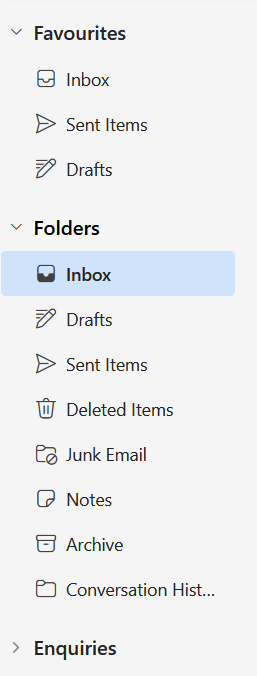
- Click the arrow next to its name to expand it and view its folders.
Opening a Shared Mailbox in a Separate Tab
If you prefer to work with the shared mailbox in its own browser tab, you can open it separately.
- Open Outlook on the Web.
- Click on your name or profile picture in the top-right area. A menu will appear.
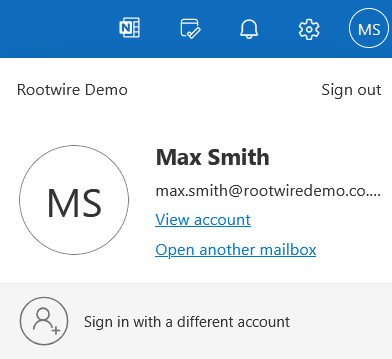
- Select Open another mailbox.
- Enter the email address of the shared mailbox, select it from the results, and click Open.
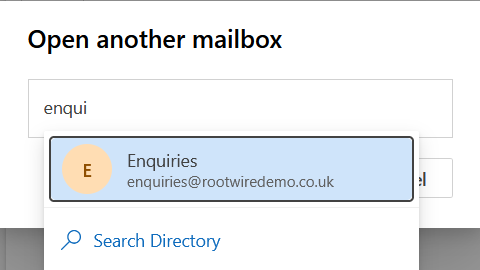
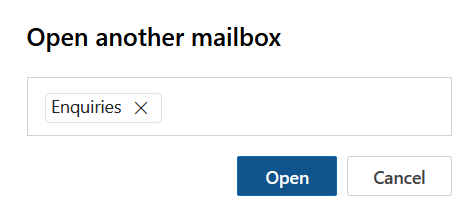
- The shared mailbox will open in a new browser tab.
Sending Email from a Shared Mailbox
How you send email from a shared mailbox depends on how you are viewing it:
If you are replying to an email within the shared mailbox section of your own inbox, the reply will also be sent from the shared mailbox address automatically.
If you want to compose a new email from the shared mailbox while viewing your own inbox, you will need to change the sender address manually:
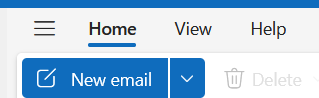
- Click New email in the toolbar at the top of the screen.
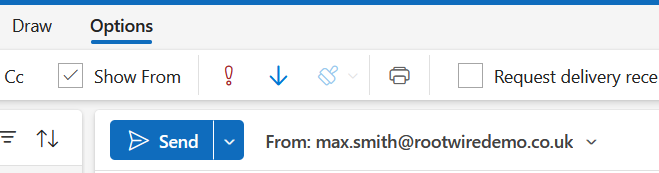
- In the new message area, click Options in the toolbar, then tick Show From. A From field will appear at the top of your message.

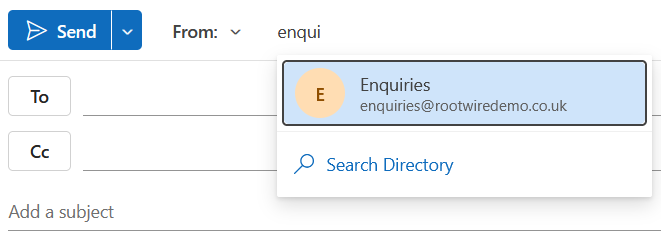
- Click the drop-down arrow next to the From field, then select Other email address.
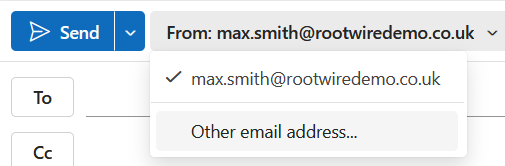
- Type the email address of the shared mailbox and select it from the results.
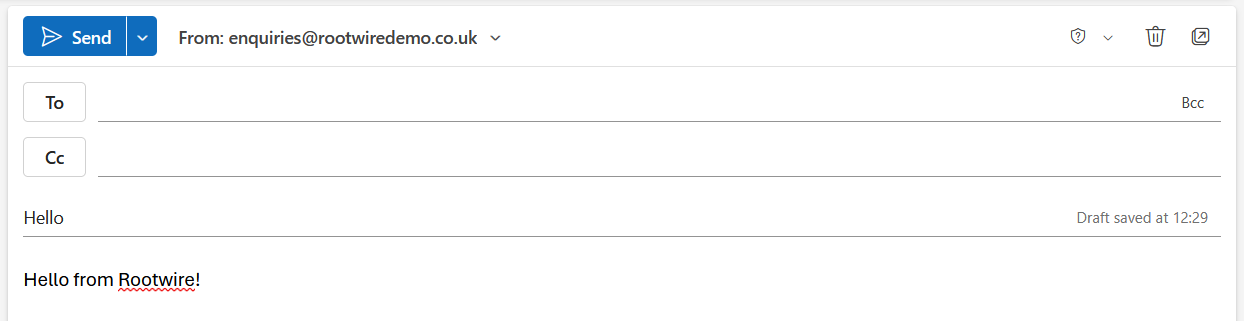
- Compose and send your email as normal. It will be sent from the shared mailbox address.
Outlook on Your Phone
- In the Outlook app, tap the menu icon in the top-left corner of the screen. This may appear as a circle, a letter, or four horizontal lines.
- Tap the + icon.
- Tap Add a shared mailbox.
- Select the account you would like to use to access the shared mailbox.
- Enter the full email address of the shared mailbox, then tap Continue.
No comments to display
No comments to display