
First Time Login
Signing In
- Open your web browser (such as Chrome, Edge, or Safari) and go to https://portal.office.com/

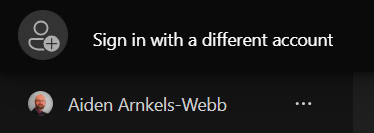
- If you see that another account is already signed in, click on the name shown in the bottom-right corner, then select Sign in with a different account.
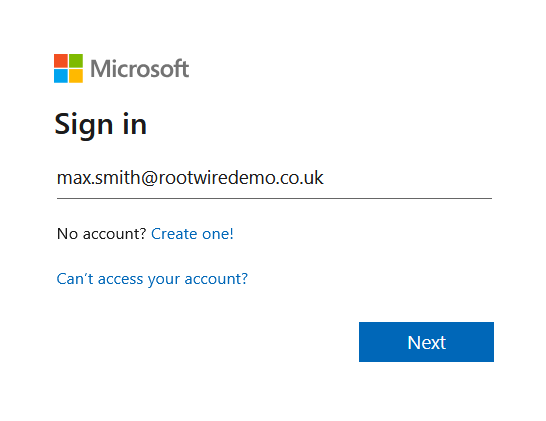
- Enter the email address provided to you, then click Next.
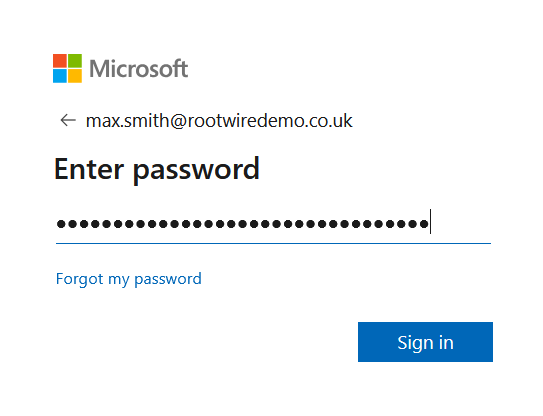
- Enter the password provided to you, then click Sign in.
Setting Your New Password
For security, you will be asked to change your password the first time you sign in. Your new password must be something only you know.
- You will see a screen asking you to update your password.
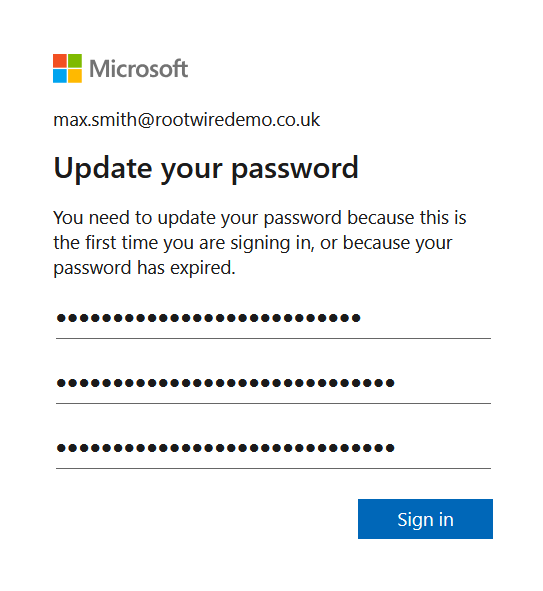
- In the Current password field, enter the password that was provided to you.
- In the New password and Confirm password fields, enter your chosen new password, then click Sign in.
Tip: Choose a password that is at least 12 characters long and includes a mix of upper and lower case letters, numbers, and symbols. Avoid using passwords you have used elsewhere.
Setting Up Multi-Factor Authentication
Multi-factor authentication (MFA) adds an extra layer of security to your account. After entering your password, you will also need to approve a notification on your phone. This means that even if someone else obtained your password, they would not be able to access your account without your phone.
- After setting your password, you will be asked to set up MFA. Click Next to begin.
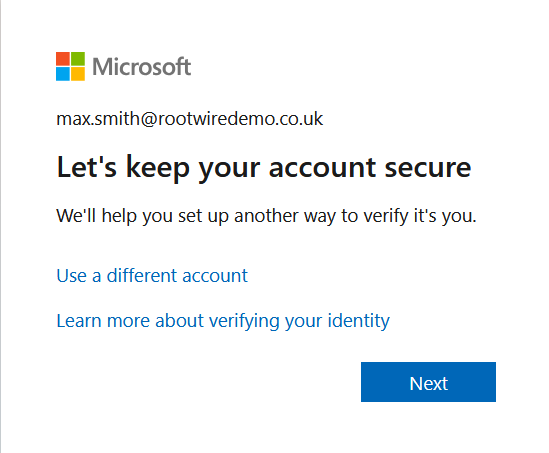
- You will see on-screen instructions for linking the Microsoft Authenticator app. Click Next and follow the prompts.
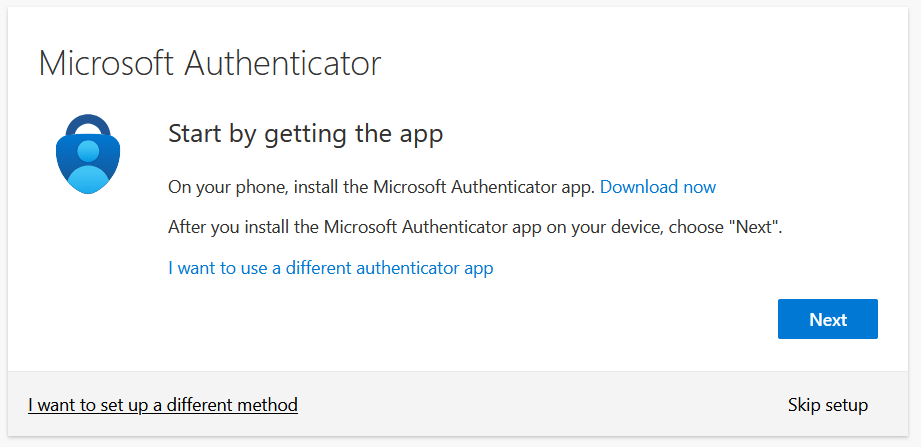
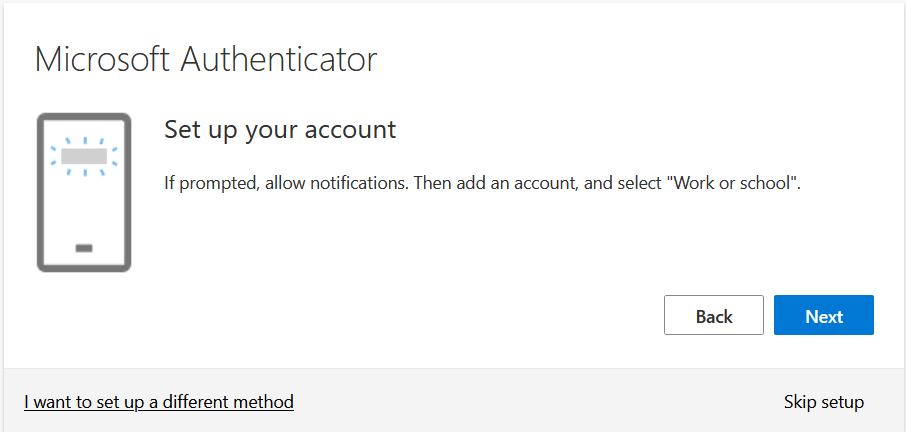
- On your mobile phone, open the Microsoft Authenticator app, tap the + icon, and select Add account.
- Select Work or school account, then tap Scan a QR code.
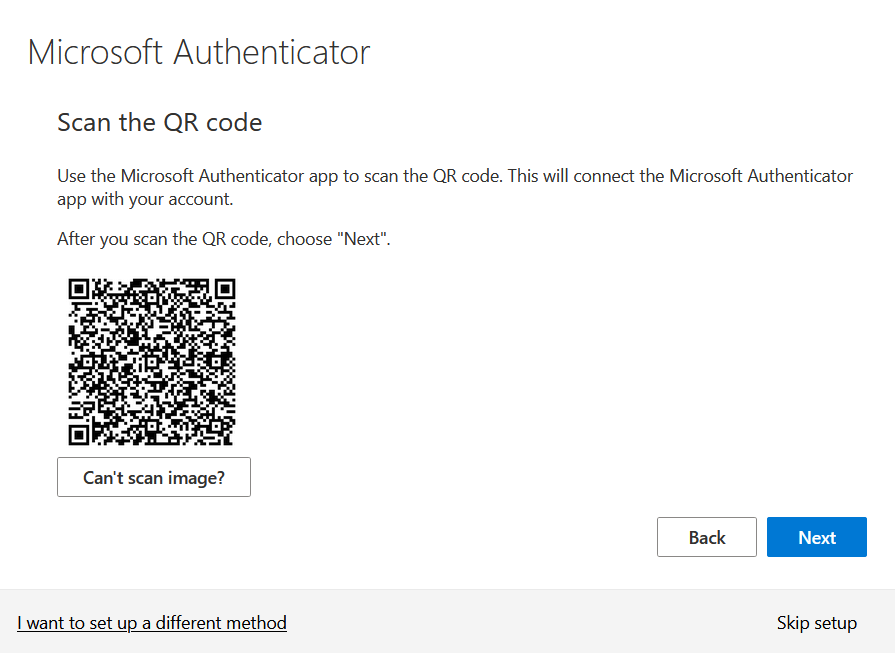
- Point your phone's camera at the QR code displayed on your computer screen. You should see a confirmation message reading Account Added Successfully.
- Back in your web browser, click Next.
- A notification will appear on your phone asking you to approve the sign-in.
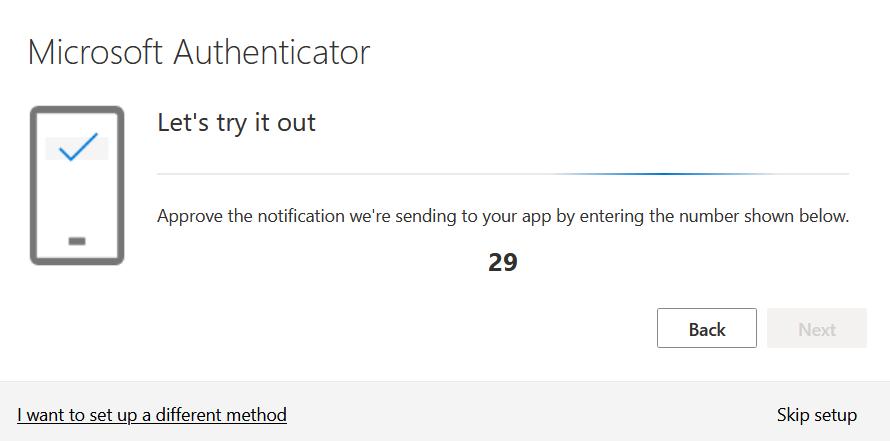
- Enter the two-digit code shown on your computer screen into the prompt on your phone, then tap Yes.
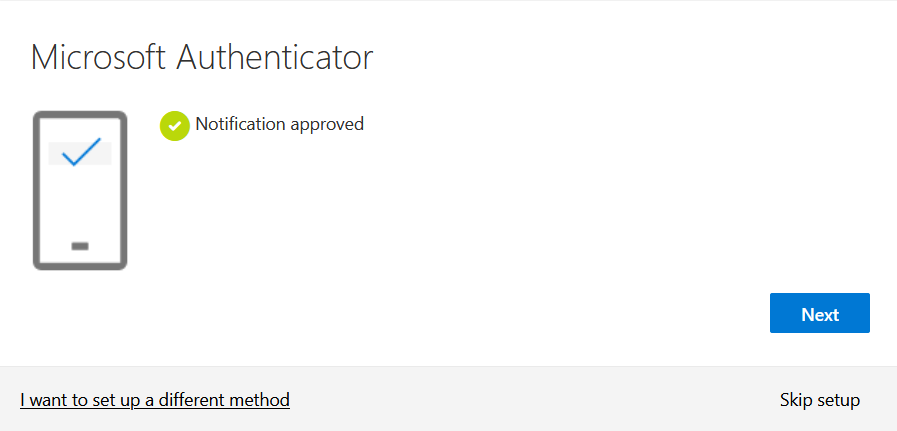
- Click Next to confirm.
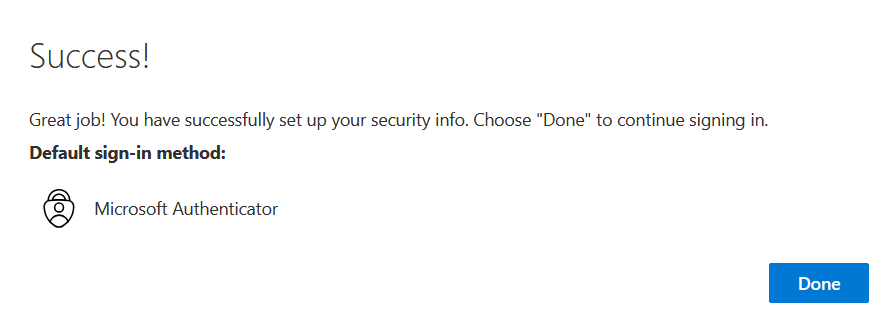
- Click Done to complete the setup.
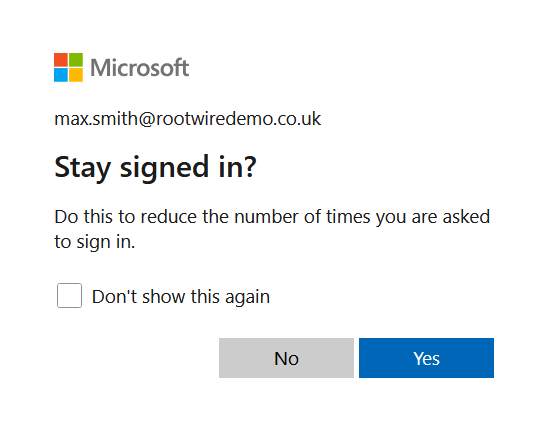
- If asked whether you would like to stay signed in, choose Yes or No based on your preference. Selecting Yes means you will not need to sign in again on this device for a period of time.
Your account is now fully set up. You can proceed to access your email using the instructions on the next page.
No comments to display
No comments to display